CODEDIGEST
Skip Navigation LinksHome » Article » ASP.Net Article » GridView with RadioButton – Select One at a Time  Submit Articles and Win Geeky Prizes!!   You are not logged in.
Search
 

ASP.Net Web Hosting
MS SQL 2008 Hosting – Click Here
 

Product Spotlight
 

Technologies
 

CodeDigest Navigation
 

Technology News
No News Feeds available at this time.
 

Community News
Read more..

 
GridView with RadioButton – Select One Row at a Time

By Bala Murugan
Posted On Sep 21,2008
Article Rating: (Login)
Be first to rate
this article.
No of Comments: 0
Category: ASP.Net
Print this article.

GridView with RadioButton – Select One at a Time


Introduction

Sometimes, we will have requirements to have a RadioButton control in every row of the GridView control to select only one row at a time. If we have a TemplateColumn and include a RadioButton control, it will allow selection of multiple rows. It is because the RadioButton will have different Id and hence it will allow multiple selections. So, we should add some sort of client side functionality that prevents selection of multiple Radio Buttons but one. In this article, we will call a Javascript function on click of RadioButton that checks if there is some other RadioButton in the GridView is already selected to uncheck it leaving the current selection.


Steps

Declare a GridView control with a TemplateColumn as the first column to include Radio control. Include BoundField for other fields to display in the GridView.


<asp:GridView ID="gvUsers" runat="server" AutoGenerateColumns="False" BackColor="White" BorderColor="#010101" BorderStyle="Groove" BorderWidth="1px" CellPadding="4" OnRowCommand="gvUsers_RowCommand">

         <Columns>

            <asp:TemplateField HeaderText="Select">

                  <ItemTemplate>

                     <asp:RadioButton ID="rdbGVRow" onclick="javascript:CheckOtherIsCheckedByGVID(this);"  runat="server" />

                  </ItemTemplate>

            </asp:TemplateField>

            <asp:BoundField DataField="Email" HeaderText="Email" ReadOnly="True" />

            <asp:BoundField DataField="FirstName" HeaderText="First Name" ReadOnly="True" />

            <asp:BoundField DataField="LastName" HeaderText="Last Name" ReadOnly="True" />                        

      </Columns>

   <FooterStyle BackColor="White" ForeColor="#330099" />

   <RowStyle BackColor="White" ForeColor="#330099" />

                    <SelectedRowStyle BackColor="#FFCC66" Font-Bold="True" ForeColor="#663399" />

   <PagerStyle BackColor="#FFFFCC" ForeColor="#330099" HorizontalAlign="Center" />

  <HeaderStyle BackColor="#F06300" Font-Bold="True" ForeColor="#FFFFCC" />

</asp:GridView>


CodeBehind

protected void Page_Load(object sender, EventArgs e)

    {

        if (!IsPostBack)

            BindUsers();

    }

    public void BindUsers()

    {

        SqlConnection con = new SqlConnection(ConfigurationManager.ConnectionStrings["Sql"].ConnectionString);

        con.Open();

        SqlCommand com = new SqlCommand("SP_GetUsersForModeration", con);

        com.CommandType = CommandType.StoredProcedure;

        SqlDataAdapter ada = new SqlDataAdapter(com);

        DataTable dt = new DataTable();

        ada.Fill(dt);       

        gvUsers.DataSource = dt;

        gvUsers.DataBind();

    }


Execute the page. You can see the GridView with RadioButton.
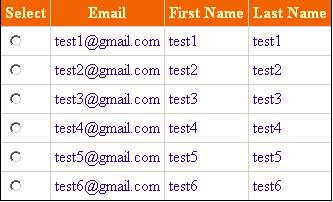


To check if there is some other row selected and to uncheck it by keeping the current row selection we will call a JavaScript function called CheckOtherIsCheckedByGVID().


function CheckOtherIsCheckedByGVID(spanChk)

       {            

           var IsChecked = spanChk.checked;        

           if(IsChecked)

              {

               spanChk.parentElement.parentElement.style.backgroundColor='#228b22'; 

               spanChk.parentElement.parentElement.style.color='white';

              }                   


           var CurrentRdbID = spanChk.id;   

           var Chk = spanChk;

              Parent = document.getElementById('gvUsers');          

              var items = Parent.getElementsByTagName('input');            


              for(i=0;i<items.length;i++)

              {               

                  if(items[i].id != CurrentRdbID && items[i].type=="radio")

                  {           

                      if(items[i].checked)

                      {    

                          items[i].checked = false;

items[i].parentElement.parentElement.style.backgroundColor='white';

items[i].parentElement.parentElement.style.color='black';                     }

                  }

              }

       }


Sponsors

Article Contest - Winners

Winners of August, 2008


Similar Articles

Execute the page and see it in action.


Since, we are getting all the elements with tag name as “input”, the above code will uncheck if there are any other RadioButton control is present in any other column for a different purpose. To understand it better, include one more RadioButton at the last to test it.

To handle the above scenario with multiple RadioButton in a Row, we will change the code bit to access the RadioButton based on the column location. If we see the render table, we have the RadioButton at every first TD. The below code does that.


  function CheckOtherIsCheckedByGVIDMore(spanChk)

       {

           var IsChecked = spanChk.checked;

           if(IsChecked)

              {

               spanChk.parentElement.parentElement.style.backgroundColor='#228b22'; 

               spanChk.parentElement.parentElement.style.color='white';

              }                   

           var CurrentRdbID = spanChk.id;   

           var Chk = spanChk;           

              Parent = document.getElementById('gvUsers');                        

              for(i=0;i< Parent.rows.length;i++)

              {

                  var tr = Parent.rows[i];

                  var td = tr.childNodes[0];             

                  var item =  td.firstChild;            

                  if(item.id != CurrentRdbID && item.type=="radio")

                  {           

                      if(item.checked)

                      {    

                          item.checked = false;

                          item.parentElement.parentElement.style.backgroundColor='white';

                          item.parentElement.parentElement.style.color='black';

                      }

                  }

              }

       }


Configure the onclick event of header checkbox to point to the above JavaScript function.

The above code assumes the RadioButton will be the first column of every row in the GridView.


This code will work perfectly even if there are RadioButton present in any other column of the GridView control.


Download Source

Source Code 


Conclusion

Using CheckBox control to enable selection of a single row and selection of all the rows is a common task that we will do GridView control. This article will help you doing the same with JavaScript in client side. Download the source attached with this article. Thanks for reading this article.

Read my previous article, GridView with CheckBox – Select All and Highlight Selected Row. Muhammed Mosa gave a useful comment to rewrite the javascript codes using JQuery which will reduce the code and increase performance. I will re-write both the article and post it in future using JQuery.


Article Feedback
Title  
Submitted By  
Comment  
Enter the verification number
 
Comments