CODEDIGEST
Skip Navigation LinksHome » Article » ASP.Net Article » ListView Control with LINQ to SQL Class – Part 1  Submit Articles and Win Geeky Prizes!!   You are not logged in.
Search
 

ASP.Net Web Hosting
MS SQL 2008 Hosting – Click Here
 

Product Spotlight
 

Technologies
 

CodeDigest Navigation
 

Technology News
No News Feeds available at this time.
 

Community News
Read more..

 
ListView Control with LINQ to SQL Class– Part 1

By Satheesh babu
Posted On Apr 21,2008
Article Rating: (Login)
Be first to rate
this article.
No of Comments: 0
Category: ASP.Net 3.5
Print this article.

ListView Control with LINQ to SQL Class– Part 1


LINQ stands for Language Integrated Query.  LINQ is a data querying methodology which provides querying capabilities to .Net languages with syntax similar to SQL query. LINQ has a set of querying operators that can be used to query in memory object collection, Sql database, XML, etc. LINQ processing engine will then convert the LINQ query to native query specific to the database to execute against the datasource.  Since, the querying feature is integrated with the language; one can build an efficient query based on the language of their choice.  With Visual Studio, we have intellisense support and with language support, we have type safety and compile-time error checks.


With this introduction, we will see more about LINQ to SQL classes in this article. LINQ to SQL is another capability which we can use to manage the relational database object as .net object. We can query, insert, update and delete the underlying database object with these classes.  When we query/Update/Delete these .net object, LINQ to SQL will automatically take care of the underlying relational data objects.  In short, LINQ to SQL provides an Object-Relational Mapping (O/R Mapping) which maps objects of different type system. In our case, it is relational to object oriented type system.


LINQ to SQL designer

Visual Studio 2008 has a new designer to design a relational database object as LINQ to SQL objects.  We can either, drag and drop database object from “Server Explorer” or, we can design the LINQ to SQL object manually using the designer and tools.


To understand better, we will bind a ListView control using LINQ to SQL class which fetches data from 2 tables, Employee and Department in this article.


In solution explorer, right the project and select “Add New Item”. Select “LINQ to SQL classes” as shown in below figure. I have named it as EmployeeInfo.

F:\Articles\Dot Net 3.5\LINQ to SQL\add.png

This will add an EmployeeInfo.dbml file inside “App_Code” folder.  In Visual Studio, EmployeeInfo.dbml will have 2 panes. The left pane is for deigning the data objects and the right pane can be used for creating methods that operates on the data objects.

The Visual Studio toolbar will contain a new toolbar for designing LINQ to SQL objects.

F:\Articles\Dot Net 3.5\LINQ to SQL\orTools.png

We will see more about using these toolbar to create our own object in future articles. Once we include the LINQ to SQL Class in the project, there will be 3 files added to the App_Code.


EmployeeInfo.dbml

An XML file that contains information about the tables like table name, column name, type, etc

EmployeeInfo.layout

An XML file that specifies how the designer places the objects.

EmployeeInfo.designer.cs

The C# code file that will have code to interact with the underlying database called DataContext object. It also has entity class definition.


Designing the LINQ to SQL classes

Open Server Explorer, Expand the database tables.

Drag Employee and Department into LINQ to SQL designer. The Objects will be created automatically. Refer the below figure.

F:\Articles\Dot Net 3.5\LINQ to SQL\designer.png


This will update the EmployeeInfo.designer.cs file with class definition for Employee and Department. It will also generate the DataContext object for these objects for interacting with the underlying datasource. Open the file and we can see the generated code for datasource interactions.


The arrow between the object is the foreign key relationship between them. This means that the Employee class will have the Department class as a member.


Thus, we have modelled LINQ to SQL classes which has O/R mapping. Moving forward, we will use these objects to bind a ListView control.


Binding the ListView

ListView is a new databound control that is shipped with ASP.Net 3.5. In short, ListView control can be thought as a hybrid between GridView and Repeater control which can be used to display data in any custom layout with inbuilt edit, update, and sort feature.

We will split this article into 2 parts,

In Part 1, we will bind the ListView control with the help of LinqDataSource control and Part 2 we will bind the ListView Control without LinqDataSource control using LINQ to SQL classes.


Steps

1.      Drag a LinqDataSource control from Data tab of Visual Studio.

2.      Click the Smart tag and select “Configure Data Source...”

F:\Articles\Dot Net 3.5\LINQ to SQL\configureDS.png

3.      Checking “Show only DataContext objects” will show only the DataContext objects available, else it list all the objects available.

4.      Select “EmployeeInfoDataContext” and click Next.

5.      Choose Employee table, click “Advanced” button and check all the checkboxes for edit, insert and delete. Click OK.  Click Finish.

F:\Articles\Dot Net 3.5\LINQ to SQL\advanced.png

6.      Drag a ListView control, configure it DataSourceID to the LinqDataSource ID.

7.      Click the Smart tag of ListView, Choose “Configure ListView..”. Select a Layout, I have chosen Flow. Check enable editing, inserting and deletion.

F:\Articles\Dot Net 3.5\LINQ to SQL\ConfigureLV.png


Execute the page. You can see the ListView displaying the data. Since, we have Department details in a different table maintained by foreign key relationship; the ListView will display “Department” for every employee for department field.

In ItemTemplate, if you see the Department label, it will be,

  Department:

<asp:Label ID="DepartmentLabel" runat="server"

 Text='<%# Eval("Department ") %>' />

<br />


Since, we have selected to display all the column while configuring the datasource the ListView have configured the department as <%# Eval("Department ") %> which will render “Department” for every row.

Change the above code to similar to below to display the DepartmentName.


Department:

<asp:Label ID="DepartmentLabel" runat="server"

 Text='<%# Eval("Department.DepartmentName") %>' />

<br />


Make this change in AlternatingItemTemplate also.

When we click Edit, again Department will be displayed as “Department” as text in textbox. It will be better if we display a DropDownList with department selected. User can select different department from the dropdown and can click update to update it.


Sponsors

Article Contest - Winners

Winners of August, 2008


Similar Articles

DropDownList for Department in EditItemTemplate/InsertItemTemplate

Drag another LinqDataSource and configure to fetch DeptID and DepartmentName from Department table. 

In EditItemTemplate replace the TextBox with the DropDownList,


Department:         

<asp:DropDownList ID="ddlDept" DataSourceID="LinqDataSource2"             

DataTextField="DepartmentName" DataValueField="DeptID"

SelectedValue='<%# Bind("DeptID") %>' runat="server">

</asp:DropDownList>

<br />


Repeat the same for InsertItemTemplate for inserting new row.

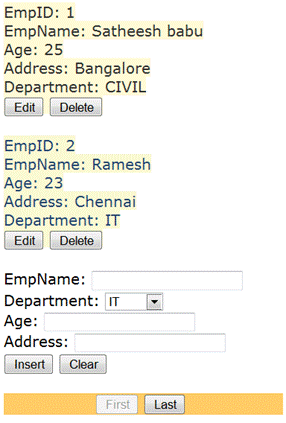
Include a DataPager control for paging. Refer the below figure for the final output.
F:\Articles\Dot Net 3.5\LINQ to SQL\LV.png

The full ListView Code,

 <asp:LinqDataSource ID="LinqDataSource2" runat="server"

            ContextTypeName="EmployeeInfoDataContext" Select="new (DeptID, DepartmentName)"

            TableName="Departments">

</asp:LinqDataSource>  


 <asp:LinqDataSource ID="LinqDataSource1" runat="server"

        ContextTypeName="EmployeeInfoDataContext" EnableDelete="True"

        EnableInsert="True" EnableUpdate="True" TableName="Employees">

 </asp:LinqDataSource>


 <asp:ListView ID="lvEmployee" runat="server" DataKeyNames="EmpID"

        DataSourceID="LinqDataSource1" InsertItemPosition="LastItem">

        <ItemTemplate>

            <span style="background-color: #FFFBD6;color: #333333;">EmpID:

            <asp:Label ID="EmpIDLabel" runat="server" Text='<%# Eval("EmpID") %>' />

            <br />

            EmpName:

            <asp:Label ID="EmpNameLabel" runat="server" Text='<%# Eval("EmpName") %>' />

            <br />

            DeptID:

            <asp:Label ID="DeptIDLabel" runat="server" Text='<%# Eval("DeptID") %>' />

            <br />

            Age:

            <asp:Label ID="AgeLabel" runat="server" Text='<%# Eval("Age") %>' />

            <br />

            Address:

            <asp:Label ID="AddressLabel" runat="server" Text='<%# Eval("Address") %>' />

            <br />

            Department:

            <asp:Label ID="DepartmentLabel" runat="server"

                Text='<%# Eval("Department.DepartmentName") %>' />

            <br />

            <asp:Button ID="EditButton" runat="server" CommandName="Edit" Text="Edit" />

            <asp:Button ID="DeleteButton" runat="server" CommandName="Delete"

                Text="Delete" />

            <br />

            <br />

            </span>

        </ItemTemplate>

        <AlternatingItemTemplate>

            <span style="background-color: #FAFAD2;color: #284775;">EmpID:

            <asp:Label ID="EmpIDLabel" runat="server" Text='<%# Eval("EmpID") %>' />

            <br />

            EmpName:

            <asp:Label ID="EmpNameLabel" runat="server" Text='<%# Eval("EmpName") %>' />

            <br />

            DeptID:

            <asp:Label ID="DeptIDLabel" runat="server" Text='<%# Eval("DeptID") %>' />

            <br />

            Age:

            <asp:Label ID="AgeLabel" runat="server" Text='<%# Eval("Age") %>' />

            <br />

            Address:

            <asp:Label ID="AddressLabel" runat="server" Text='<%# Eval("Address") %>' />

            <br />

            Department:

            <asp:Label ID="DepartmentLabel" runat="server"

                Text='<%# Eval("Department.DepartmentName") %>' />

            <br />

            <asp:Button ID="EditButton" runat="server" CommandName="Edit" Text="Edit" />

            <asp:Button ID="DeleteButton" runat="server" CommandName="Delete"

                Text="Delete" />

            <br />

            <br />

            </span>

        </AlternatingItemTemplate>

        <EmptyDataTemplate>

            <span>No data was returned.</span>

        </EmptyDataTemplate>

        <InsertItemTemplate>

            <span style="">EmpName:

            <asp:TextBox ID="EmpNameTextBox" runat="server" Text='<%# Bind("EmpName") %>' />

            <br />

            DeptID:

                          <asp:DropDownList ID="DropDownList2" DataSourceID="LinqDataSource2"             

                DataTextField="DepartmentName" DataValueField="DeptID" runat="server">

                </asp:DropDownList>

            <br />

            Age:

            <asp:TextBox ID="AgeTextBox" runat="server" Text='<%# Bind("Age") %>' />

            <br />

            Address:

            <asp:TextBox ID="AddressTextBox" runat="server" Text='<%# Bind("Address") %>' />

            <br />

            Department:

            <asp:TextBox ID="DepartmentTextBox" runat="server"

                Text='<%# Bind("Department.DepartmentName") %>' />

            <br />

            <asp:Button ID="InsertButton" runat="server" CommandName="Insert"

                Text="Insert" />

            <asp:Button ID="CancelButton" runat="server" CommandName="Cancel"

                Text="Clear" />

            <br />

            <br />

            </span>

        </InsertItemTemplate>

        <LayoutTemplate>

            <div ID="itemPlaceholderContainer" runat="server"

                style="font-family: Verdana, Arial, Helvetica, sans-serif;" >

                <span ID="itemPlaceholder" runat="server" />

            </div>

            <div style="width:300px;text-align: center;background-color: #FFCC66;font-family: Verdana, Arial, Helvetica, sans-serif;color: #333333;">

                <asp:DataPager ID="DataPager1" runat="server" PageSize="2">

                    <Fields>

                        <asp:NextPreviousPagerField ButtonType="Button" ShowFirstPageButton="True"

                            ShowNextPageButton="False" ShowPreviousPageButton="False" />


                        <asp:NextPreviousPagerField ButtonType="Button" ShowLastPageButton="True"

                            ShowNextPageButton="False" ShowPreviousPageButton="False" />

                    </Fields>

                </asp:DataPager>

            </div>

        </LayoutTemplate>

        <EditItemTemplate>

            <span style="background-color: #FFCC66;color: #000080;">EmpID:

            <asp:Label ID="EmpIDLabel1" runat="server" Text='<%# Eval("EmpID") %>' />

            <br />

            EmpName:

            <asp:TextBox ID="EmpNameTextBox" runat="server" Text='<%# Bind("EmpName") %>' />

            <br />

            DeptID:

               <asp:DropDownList ID="DropDownList1" DataSourceID="LinqDataSource2"

                SelectedValue='<%# Bind("DeptID") %>'

                DataTextField="DepartmentName" DataValueField="DeptID" runat="server">

                </asp:DropDownList>

            <br />

            Age:

            <asp:TextBox ID="AgeTextBox" runat="server" Text='<%# Bind("Age") %>' />

            <br />

            Address:

            <asp:TextBox ID="AddressTextBox" runat="server" Text='<%# Bind("Address") %>' />

            <br />

            Department:

            <asp:DropDownList ID="ddlDept" DataSourceID="LinqDataSource2"             

                DataTextField="DepartmentName" DataValueField="DeptID"

                SelectedValue='<%# Bind("DeptID") %>' runat="server">

                </asp:DropDownList>

            <br />

            <asp:Button ID="UpdateButton" runat="server" CommandName="Update"

                Text="Update" />

            <asp:Button ID="CancelButton" runat="server" CommandName="Cancel"

                Text="Cancel" />

            <br />

            <br />

            </span>

        </EditItemTemplate>

    </asp:ListView>


Downloads

Source Code 


Conclusion

Thus, we have understood the basics of LINQ to SQL and using it asp.net by binding ListView control by using LinqDataSource controls. We will see how to bind the ListView Control without using data source control in asp.net in part 2 of this article series.  Download the source attached with this article. Thanks for reading my article.

Happy Coding!!


Article Feedback
Title  
Submitted By  
Comment  
Enter the verification number
 
Comments